Table of Contents

Introduction:Many development teams invest in powerful IDEs like IntelliJ IDEA but use only a fraction of what the tool offers. Over time, developers create their own workflows. They memorize shortcuts, rely on familiar menus, and focus on writing code. The IDE becomes a background tool rather than an active productivity partner. This approach works, but it leaves significant efficiency on the table. IntelliJ IDEA was designed to reduce repetitive work and help developers understand large codebases faster. Yet many of its most useful capabilities remain underused. Not because they are hidden, but because teams rarely take the time to explore them once their workflow feels stable.
Here are ten IntelliJ IDEA features that can significantly improve how teams navigate, write, and maintain code.
1. Structural Search and Replace
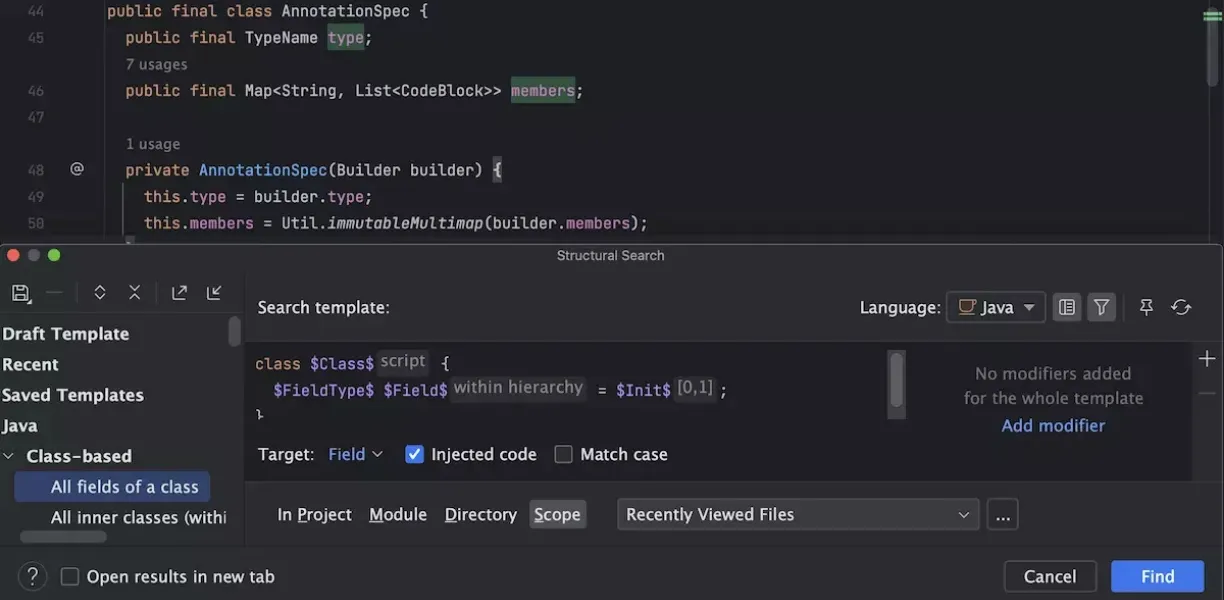
Most developers rely on simple text search when refactoring code. Structural Search and Replace goes much deeper.
This feature allows developers to search for code patterns rather than plain text. For example, you can locate all instances of a specific method structure or class pattern across a project. It is extremely useful when refactoring frameworks or migrating APIs across large codebases. Instead of manually scanning files, teams can safely transform patterns in minutes.
2. Data Flow Analysis
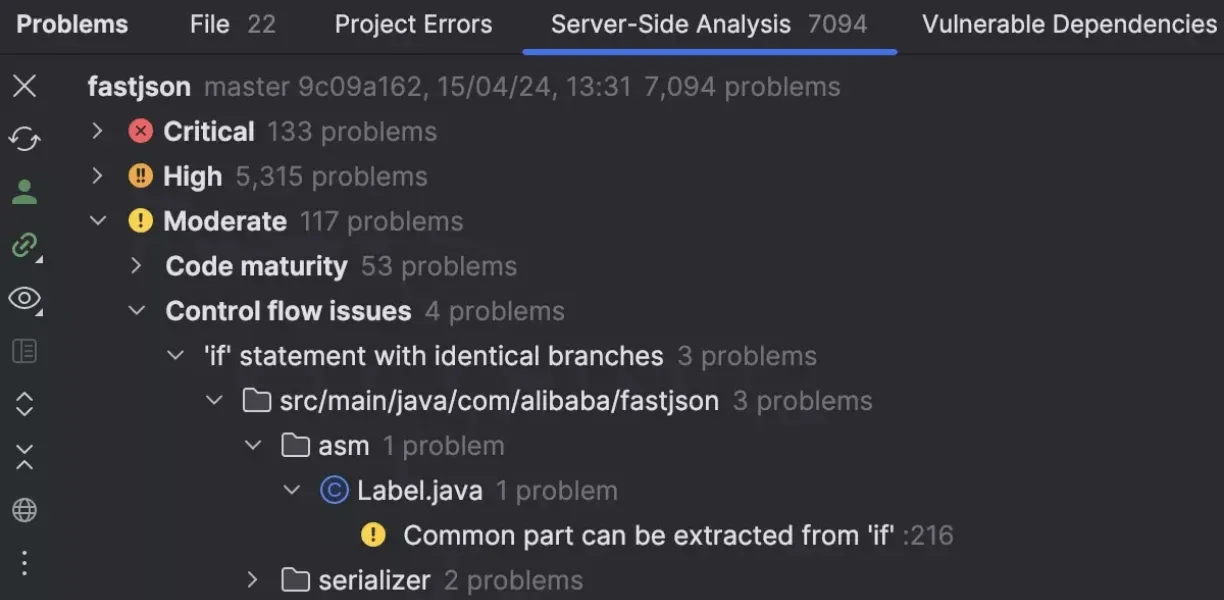
IntelliJ IDEA includes built in data flow analysis that helps developers understand how variables move through the code.
It can highlight potential null pointer exceptions, redundant conditions, and unreachable code
before the program even runs. While inspections catch many issues, data flow analysis provides
deeper insights into how logic behaves across methods and classes.
For teams working on complex backend services, this feature often reveals subtle bugs early.
3. Run Targets for Remote Development
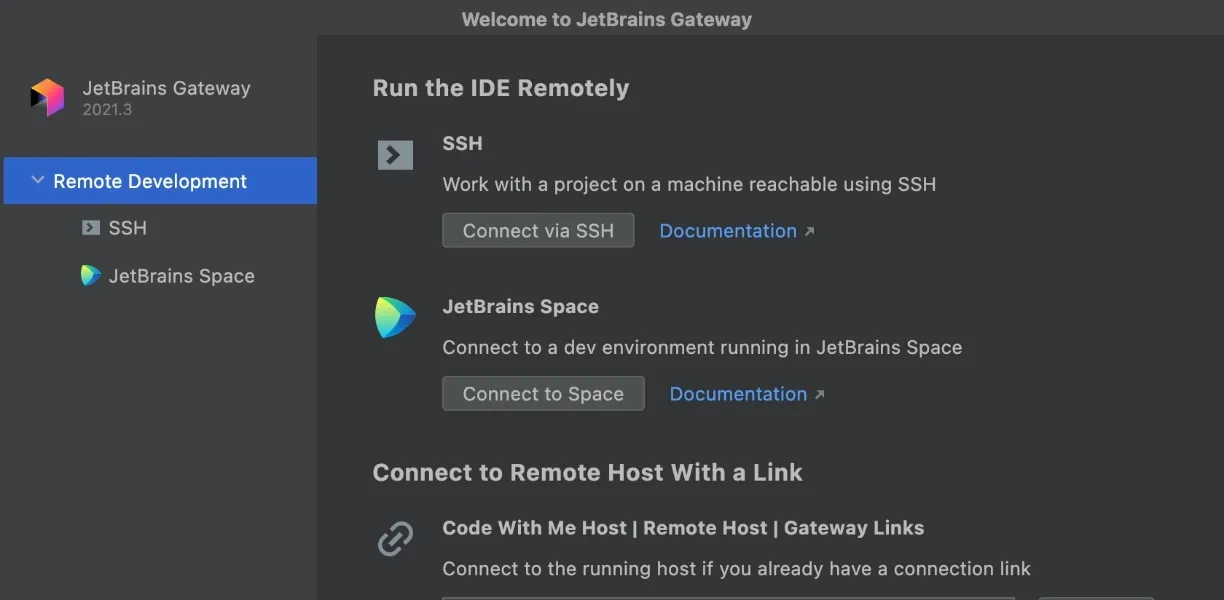
Modern development often involves containers, remote environments, or cloud based infrastructure. IntelliJ IDEA supports run targets that allow developers to build and run
applications in remote environments directly from the IDE.
This eliminates the need to manually configure terminal commands for ontainerized or remote builds.
Teams working with Kubernetes or containerized microservices find this especially useful.
4. HTTP Client Built Into the IDE
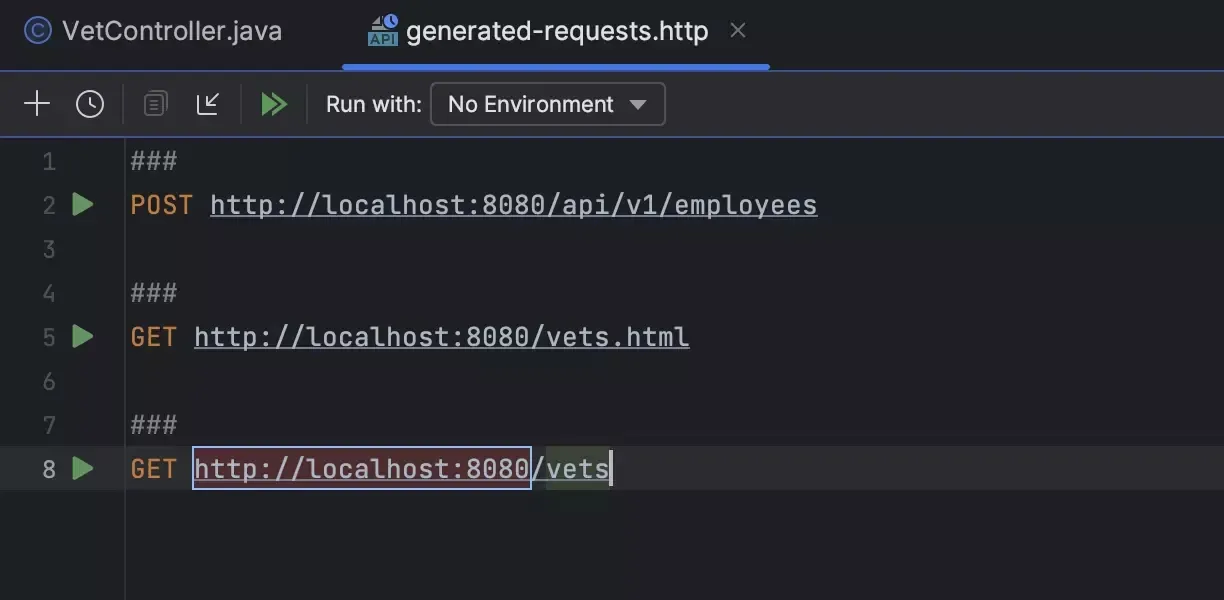
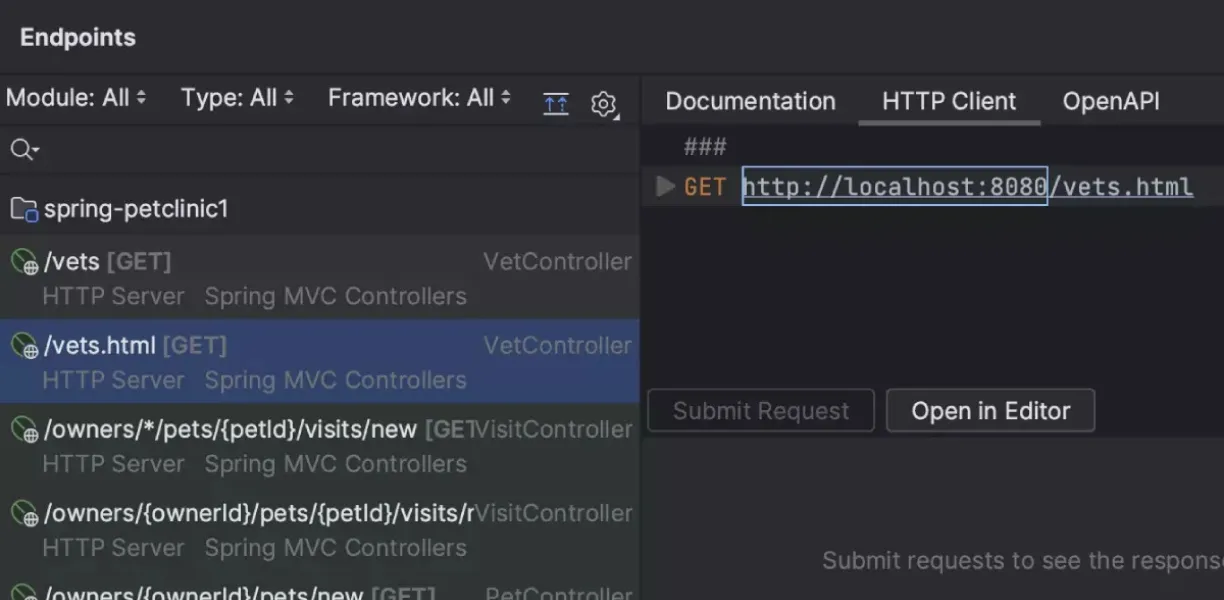
Many developers use external tools like Postman to test APIs. IntelliJ IDEA includes a powerful HTTP client that allows developers to create and execute HTTP requests directly inside the IDE.
Requests can be saved as files, version controlled with the project, and executed with
environment variables.
For teams building APIs, this keeps development and testing in the same workflow.
5. Advanced Code Navigation
Large codebases become difficult to navigate over time. IntelliJ IDEA provides multiple navigation tools that go beyond simple search. Features such as “Navigate to Symbol,” “Find Usages,” and “Call Hierarchy” allow developers to trace how code is used across the entire project. This dramatically reduces the time required to understand unfamiliar modules or dependencies.
6. Local History

One of the most underrated IntelliJ features is Local History. Even if files are not committed to Git, IntelliJ automatically tracks local changes. Developers can revert modifications or recover deleted code directly from the IDE. This acts as a safety net when experimenting with refactoring or debugging.
7. Built In Database Tools
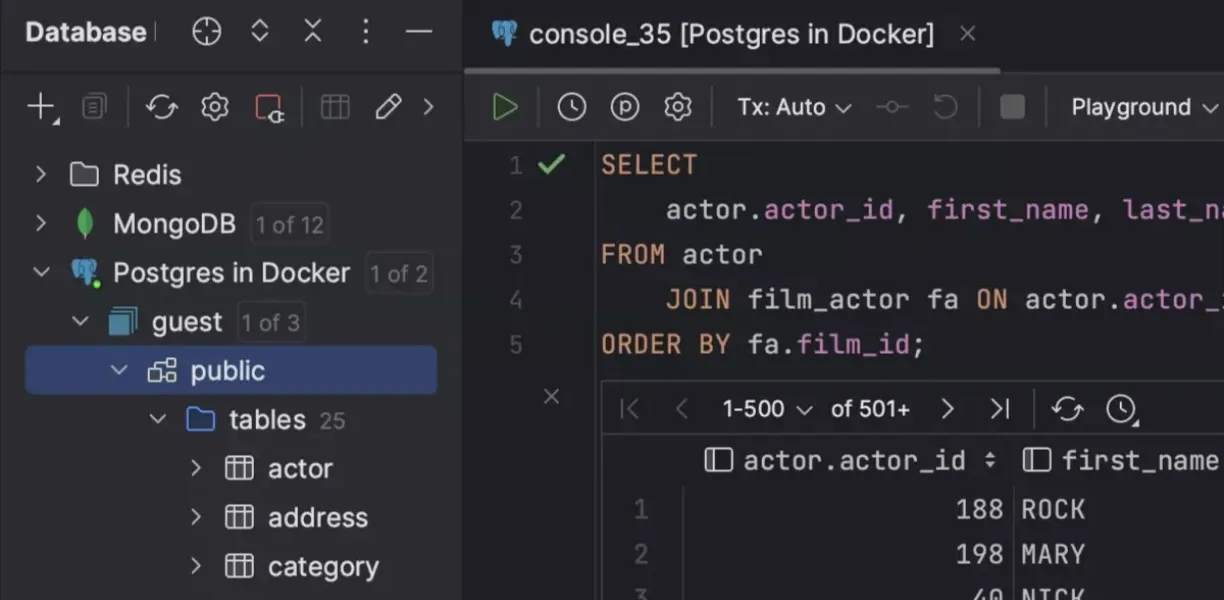
IntelliJ IDEA Ultimate includes database management tools that allow developers to connect to SQL databases directly from the IDE. Developers can browse tables, run queries, and inspect data without leaving the coding environment. For backend teams working with relational databases, this reduces context switching significantly.
8. Live Templates
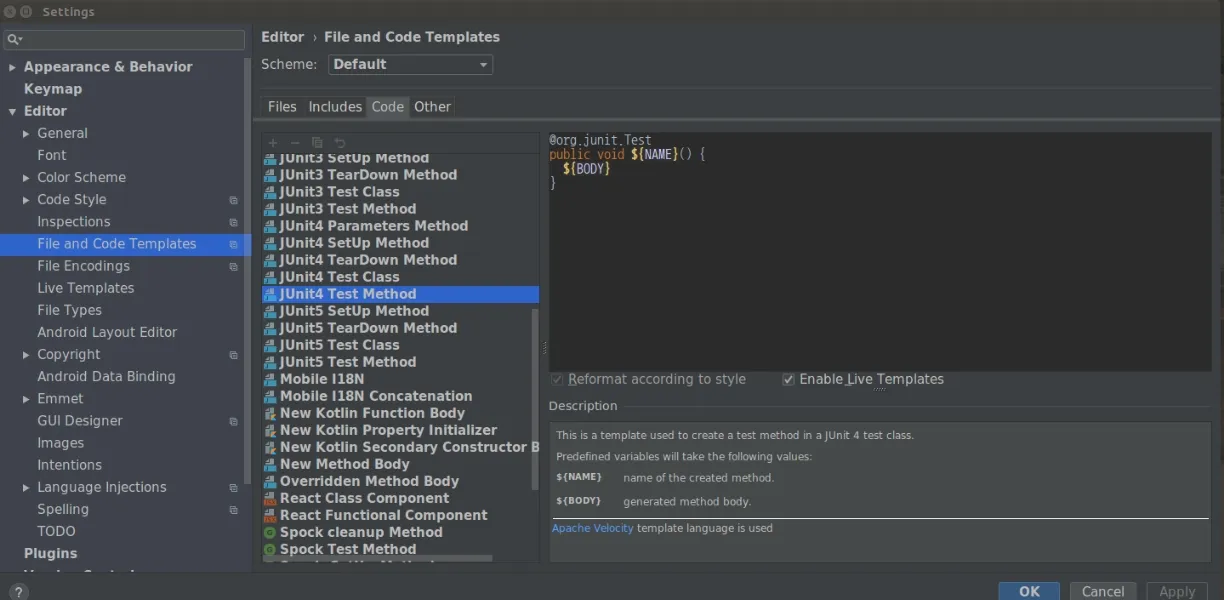
Live Templates allow developers to create reusable code snippets that expand automatically when typed. While many developers use built in templates for loops or logging statements, teams can create their own templates tailored to their frameworks and coding patterns. Over time, this standardizes code structure and accelerates repetitive tasks.
9. Refactoring Tools
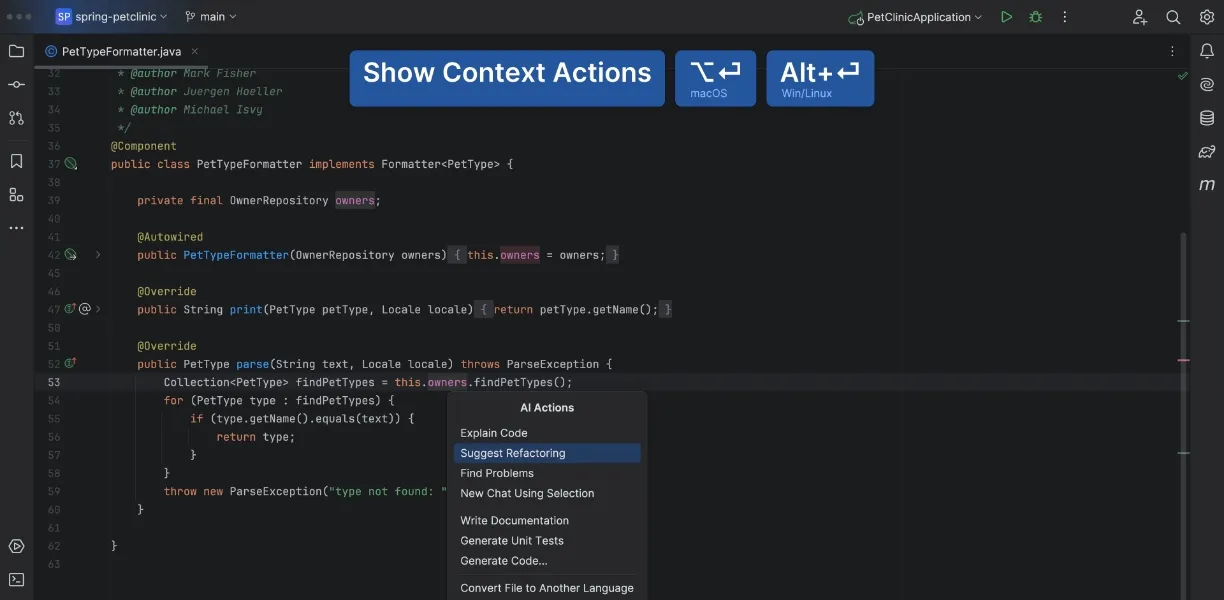
Refactoring is one of IntelliJ IDEA’s strongest capabilities, yet many developers use only the basics. Beyond renaming variables or methods, IntelliJ supports advanced refactoring such as extracting interfaces, introducing parameters, converting anonymous classes, or safely restructuring inheritance hierarchies. These tools allow teams to evolve large codebases with confidence.
10. Git Integration and Code Review Support
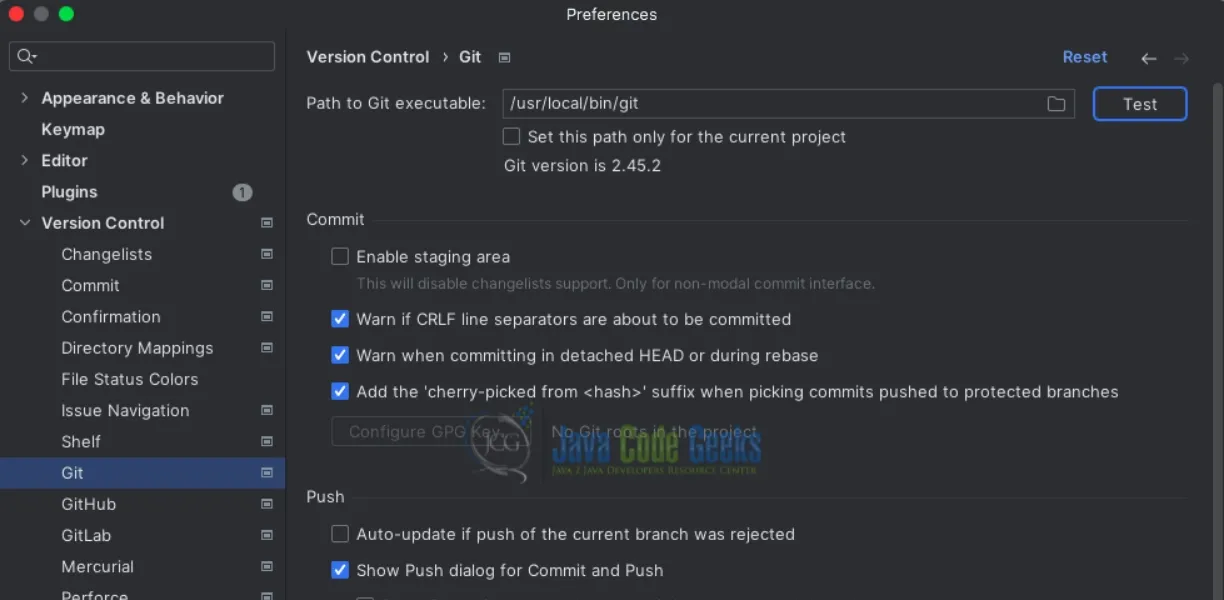
IntelliJ IDEA includes deep Git integration that allows developers to review changes, resolve conflicts, and inspect commit history directly inside the IDE. Merge conflicts can be resolved visually, and developers can compare branches or inspect changes across files without leaving the development environment. This keeps version control workflows closely tied to coding activities.
Why These Features Matter
The common thread across these capabilities is reduced friction. Developers lose productivity when they constantly switch between tools, manually search for information, or repeat tasks that could be automated. IntelliJ IDEA was built to remove these inefficiencies.
When teams fully utilize their IDE, they spend less time navigating systems and more time solving real engineering problems. Turning IDE Productivity into Team Productivity Improving developer efficiency is not only about individual habits. Teams benefit when their tools and workflows are aligned with modern development practices. Organizations that invest in developer productivity often see improvements in code quality, release speed, and collaboration across engineering teams. As a JetBrains partner, Amrut Software helps organizations implement and optimize JetBrains developer tools, including IntelliJ IDEA. Our team works with engineering leaders to streamline development environments, improve workflow efficiency, and ensure teams get the full value from their tools.
Conclusion
If your teams are using IntelliJ IDEA but not fully leveraging its capabilities, the opportunity is not just faster coding. It is building a more productive and efficient engineering environment. Connect with Amrut Software to learn how your teams can unlock the full potential of JetBrains developer tools.